
Getting started with Finn
Setup is quick and painless. Install the daemon and mobile app, create an account, add your projects. Most users are up and running in under 5 minutes.
Quick Download
Download the daemon:
Or via terminal:
curl -fsSL tryfinn.ai/install | shSetup Instructions
Create an account
Sign up for Finn to get started. It only takes a minute. You can use your email or social accounts to create your account.
Install Finn on your computer and mobile device
Download and install Finn on the computer you use for development and your mobile device. Your project files and AI requests will be routed to the desktop computer. The desktop app runs in the background.
Desktop
Download the daemon:
Or via terminal:
curl -fsSL tryfinn.ai/install | shMobile app
Launch Finn on your desktop
You can use the application or run it from the terminal.
Launch Finn via the Application
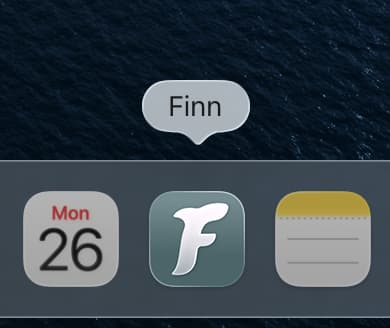
Launch Finn via the Terminal
finnYou must have Finn added to your path
Once the app has launched, you will be prompted to sign in. You must sign in to use Finn.
Connect your project folders
Finn can only access projects you have granted it access to, so you first must add at least one project. Make sure Finn is running on your desktop first.
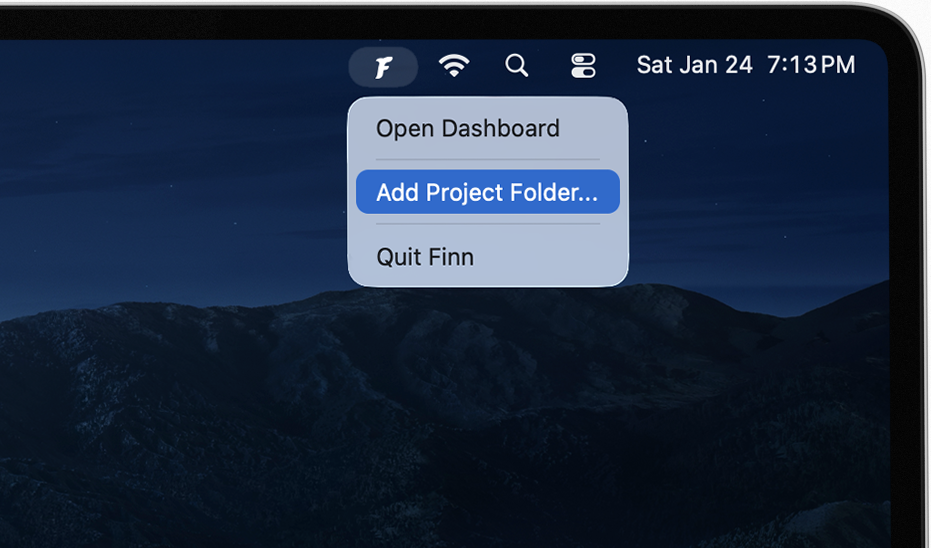
Finally, you can add or remove projects from the web dashboard by logging in.
Open Finn on your mobile device and log in
Once you launch Finn and log in, it will automatically connect to the daemon running on your desktop. If there are any issues connecting to your desktop, you will see a notification on the home screen.
Start working
You're all set! Start a chat with an agent to start editing your projects!
All Downloads
Desktop Daemon
 Windows
curl -fsSL tryfinn.ai/install | shMobile App
 iOS
iOS
 Android